Automatic Upgrades: best practice features for your lakehouse tables
Your tables stay current with the latest features, applied automatically based on workload compatibility
by Elizabeth Bowman and Tom van Bussel
- Auto Upgrades bring best-practice features to your Unity Catalog (UC) managed tables automatically, delivering better performance, reliability, interoperability, and cost savings.
- Auto Upgrades is the first capability of its kind in any lakehouse, that verifies workload compatibility before enabling features without any manual effort needed.
- Every feature Auto Upgrades enables remains under your control, configurable per table.
Your Unity Catalog (UC) managed tables now get better on their own. Automatic (Auto) Upgrades is the first capability of its kind in any lakehouse. It automatically verifies your clients are compatible, then applies best-practice features like Row Tracking the moment your tables are ready, with no manual effort required.
Open table formats are innovating quickly, introducing many new table capabilities. However, adopting a new table feature has historically meant identifying eligible tables, verifying client compatibility, and running ALTER TABLE across thousands of tables. Most teams don't have time for that, so they don't get the benefits like better performance, reliability, interoperability, and cost savings that these features can deliver. Auto Upgrades closes that gap, and you stay in control: every change is reversible per table.
Anything that takes the mental load off is a win. Keeping up with every new feature on every table is a lot, so I'm looking forward to Auto Upgrades handling the upkeep for me! —Audrey Boslego, Data Platform Engineering Manager
How Auto Upgrades works

Auto Upgrades works by observing how your existing tables are accessed, verifying that every workload is ready, and then applying features on your behalf.
1. Observe: For every existing UC managed table, Auto Upgrades observes the clients accessing it over a rolling observation window.
2. Verify: For each feature, Auto Upgrades checks that all of the following conditions hold for that same observation window:
- Every Databricks client that accessed the table during the observation window is on a Databricks Runtime version that supports the feature
- The table itself must be active (completely idle tables are skipped)
- (For now) External clients have not accessed the table during the observation window
3. Upgrade: Once a table is eligible, Auto Upgrades runs ALTER TABLE through a lightweight background job to safely apply the feature.
Extending to new tables: Once every existing table in a schema has been verified compatible with a feature, Auto Upgrades makes it a default for the schema, so that any new table created there inherits the feature automatically. Any table properties you set explicitly at creation time always take precedence.
In the future, Auto Upgrades aims to enable features on tables accessed by external clients by detecting they are compatible with a given feature. We are working with the community on standards for providing the right metadata to detect compatibility for these clients.
More thorough than a manual upgrade
A careful manual upgrade takes real diligence: selecting the right features and confirming they are production-ready, verifying that every client supports them, and ensuring there’s a way to roll back. Auto Upgrades applies that same diligence to every table automatically.
✅ GA-only, with no material regressions to performance or costs. A feature qualifies for Auto Upgrades only if it has reached general availability and does not materially reduce performance or increase costs. Many features improve performance or reduce costs, but none make it worse.
✅ A comprehensive observation window. Not every data workload runs daily. Monthly batch jobs, quarterly reports, and ad-hoc analysis can take weeks to surface. Databricks chose an 100-day window to capture the long tail, giving us a complete picture of how your tables are actually used before any decision is made.
✅ Strict compatibility verification. We don't enable a feature until every accessing client supports the feature. A single unsupported client is enough for us to wait, both for existing tables and for the schema defaults governing new ones.
✅ Hands off when it can’t verify. Auto Upgrades only acts on tables it can fully verify. Tables touched by external clients are out of scope, and tables inactive for more than 30 days are skipped.
✅ Your decisions are respected. Every feature enabled by Auto Upgrades can be disabled or dropped per table at any time. Once you disable a feature on a table, Auto Upgrades will not re-enable it later.
Benefits Auto Upgrades unlocks
Auto Upgrades brings established best-practice capabilities to your UC managed tables. These include features that most teams want but haven't enabled because of the manual work involved.
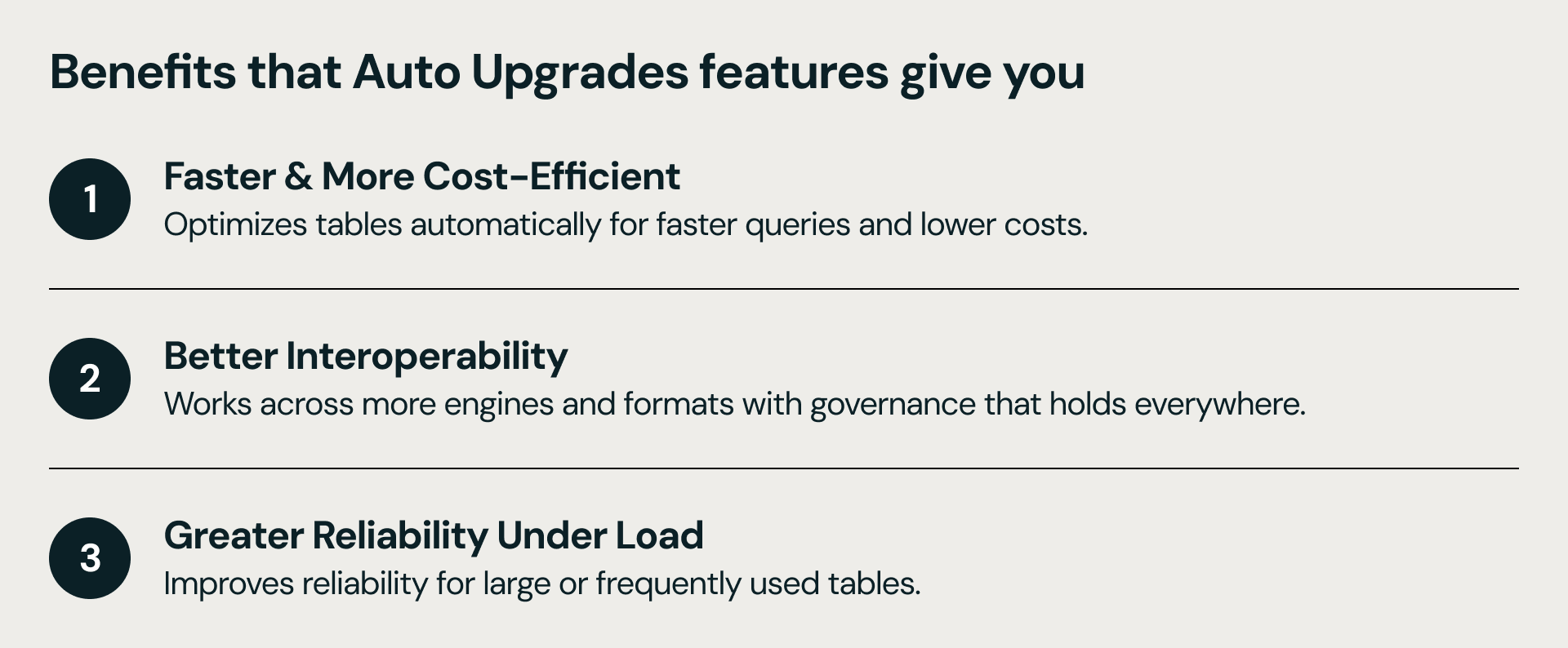
As Auto Upgrades runs, your tables gradually get:
Faster, more cost-efficient tables. Your tables become quicker to query, cheaper to store, and cheaper to change.
- Automatic Liquid Clustering applies for new tables that have it set as a schema default, optimizing data layout according to queries you actually run and adapting as your workload evolves, so there's no need for ZORDER or manual clustering keys.
- Deletion Vectors mark rows as deleted or updated instead of rewriting entire data files, so that deletes and updates run faster and cost less.
- Column Mapping lets you rename or drop columns instantly, without rewriting data.
- Parquet V2 compresses data more efficiently, lowering storage costs and speeding up scans.
Open interoperability across engines. Your tables become open to more formats and more engines, with governance in Unity Catalog that holds across all of them.
- Catalog Commits enables UC to become the system of coordination for managed tables, across engines. It unlocks external engine writes to UC managed tables, enables ABAC policies to be applied to external engines, and enables multi-table, multi-statement transactions.
- Row Tracking adds unique row-level identifiers that open the door to Automatic Change Data Feed, Vector Search, and Lakebase, across Iceberg and Delta. It also lets Materialized Views refresh incrementally instead of recomputing the full view, significantly lowering refresh costs.
Greater reliability under load. Your tables stay stable as they grow and as write volume climbs.
- Checkpoint V2 maintains table metadata in a more scalable format, reducing commit failures in situations with many concurrent writes.
Auto Upgrades will continue to grow to cover more features and support additional UC managed table types like Materialized Views and Streaming Tables.
Comprehensive observability
Every feature Auto Upgrades adds appears in the table's DESCRIBE HISTORY output and in the Catalog Explorer history tab, in a way that’s distinguishable from your user-initiated changes. For more information, see observe enabled features.
For account-wide visibility, you will be able to query a system table to see every Auto Upgrades event by table, feature, and timestamp. For example, to see all the automatic upgrade operations that occurred for all features on a specific table:
Getting started
Auto Upgrades works on UC managed tables. So, the most impactful step you can take to start, is to make sure your tables are converted to this type table.
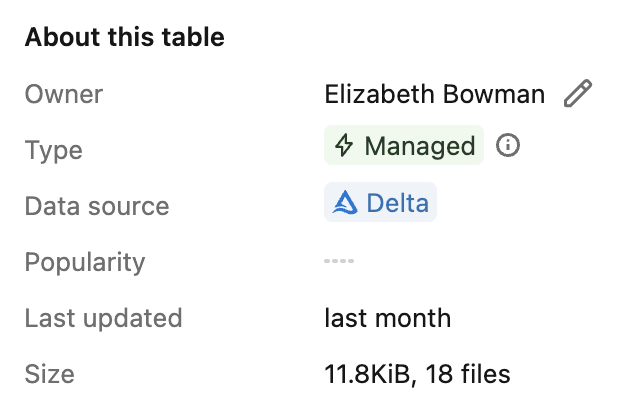
Not sure which of your tables are managed by Unity Catalog? Check the table type in Catalog Explorer, or run DESCRIBE EXTENDED on your table.
To audit tables in bulk, you can also use the Auto Upgrades system table to say what features were enabled on which tables, at what times:
If you have external tables you'd like to bring in, you can convert them with a single SET MANAGED, and Auto Upgrades takes it from there.
To learn more about how Auto Upgrades works, what features it enables, and how to observe its activity, check our documentation.
With Auto Upgrades, your managed tables manage themselves. As Databricks ships new capabilities, your tables keep getting better — without ALTER TABLE marathons, compatibility audits, or migration projects. You get faster, more reliable, more interoperable tables, automatically.
FAQs
How do Auto Upgrades ensure a table is safe to upgrade?
Auto Upgrades only apply generally available features that don't materially reduce performance or raise cost. It waits through a 100-day observation window, requires every accessing client to be compatible, skips tables it can't fully verify, and lets you disable any feature per table at any time.
If my table changed, how can I tell it was Auto Upgrades?
Every change Auto Upgrades makes appears in the table's DESCRIBE HISTORY output and the Catalog Explorer history tab, marked distinctly from your own changes. For account-wide visibility, query system.storage.table_auto_upgrade_operations_history will also show what time any feature was added to any table.
Will Auto Upgrades break a table that my external or OSS tools read?
No. Tables accessed by external or OSS clients are out of scope for now. Auto Upgrades only acts when it can verify that every client touching a table supports the feature. In the future we will extend to include tables with external or OSS access too, once Auto Upgrades can confirm those clients are compatible.
Does Auto Upgrades cost anything? Will it raise my DBU or storage bill?
In the current Gated Public Preview, Databricks does not charge for Auto Upgrades itself (the background ALTER TABLE work), and we hope to keep offering it for free. Check the Auto Upgrades documentation for the most up-to-date information.
How long until my tables get upgraded? When will I see changes?
Auto Upgrades uses a 100-day observation window to capture infrequent workloads (e.g. monthly batch jobs, quarterly reports, ad-hoc analysis) before acting. Once a table is verified compatible, the feature will be applied shortly afterward through a background job. Also keep in mind that when a feature gets rolled for the first time, it is gradual across customers and % of tables, so it may take up to 3-5 months for it to reach your tables with compatible workloads.
Get the latest posts in your inbox
Subscribe to our blog and get the latest posts delivered to your inbox.