Connect Amazon S3 data to Databricks with Delegated IAM Permissions
Set up a secure S3 connection to Databricks in minutes with a new external location creation flow
by Gordon Wang
- Why simpler S3 connectivity matters
- How AWS IAM temporary delegation for S3 works
- How to set up an external location with the new flow
Importance of Simpler S3 connectivity
Connecting Amazon S3 is one of the most important setup steps to getting value out of Databricks. External locations provide the governed connection between your S3 bucket and Unity Catalog so Databricks can read and write data securely. This setup is foundational for common workflows, from ingestion and pipelines to analytics and governance. It is also increasingly important as more people adopt LTAP (Lake Transactional/Analytical Processing), a new architecture designed to unify transactional and analytical data on a single governed foundation without the traditional overhead of pipelines, replicas, and ETL.
Today, customers authorize S3 connectivity by creating an external location, a Unity Catalog object that combines a storage path with a storage credential to authorize read and write access to your S3 bucket.
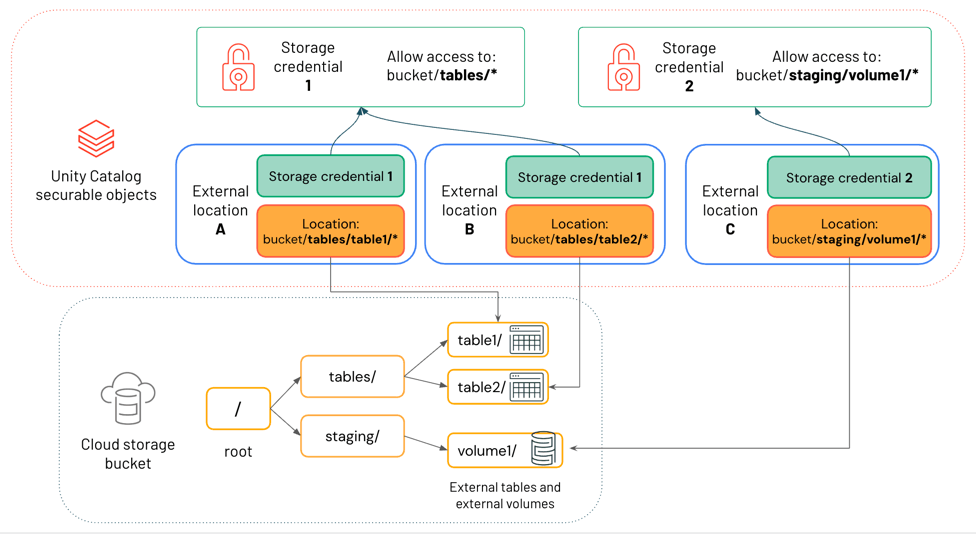
Until now, connecting to S3 has often been one of the most painful parts of getting started on Databricks. Automatic setup helps customers spend less time managing cloud infrastructure, and more time building data intelligence on top of their data.
How automated S3 connectivity works
Connecting an Amazon S3 bucket to Databricks requires creating an external location, a connection registered in Unity Catalog that governs how Databricks reads and writes your data. Previously, that meant authoring 140-line IAM trust policies, configuring S3 bucket permissions, deploying CloudFormation templates, and toggling between the AWS console and Databricks to register everything correctly.
Now, we’ve made it a few simple clicks:

What’s happening under the hood?
This new flow is powered by AWS IAM temporary delegation. After you specify your S3 bucket and access level, you are prompted to log into AWS to verify your permissions. If you have sufficient access, you are able to grant Databricks a temporary, time-bounded authorization to provision the required resources on your behalf. For users that lack sufficient AWS permissions can directly request them from their AWS admin within the flow.
With that delegation in place, Databricks automatically handles the rest:
- Storage credential: An IAM role with least-privilege permissions is created and the cross-account trust policy is correctly configured.
- External location: A fully configured external location registered in Unity Catalog, mapped to your specified bucket. Auto Loader and File Events are enabled automatically.
Once the setup completes, the authorization automatically expires. Databricks never holds standing access to your AWS account, and all actions taken during provisioning are logged in AWS CloudTrail.
What this means in practice
The manual configuration work that previously lived across multiple consoles now happens in a single session natively from the Databricks workspace. Automated provisioning eliminates the most common failure modes like incorrect trust policies, missing bucket permissions, misconfigured ARNs, while also ensuring every IAM role created follows least privilege principles aligned to enterprise security standards.
As more people adopt the LTAP architecture, simpler S3 connectivity removes a key infrastructure barrier by providing a governed cloud storage destination where operational data can be instantly queryable by analytical engines without requiring separate pipelines.
Learn more
In your workspace, navigate to Catalog Explorer → External Locations → Create (/explore/locations/create) to automatically connect your S3 bucket with automatic setup.
For more information:
Get the latest posts in your inbox
Subscribe to our blog and get the latest posts delivered to your inbox.